
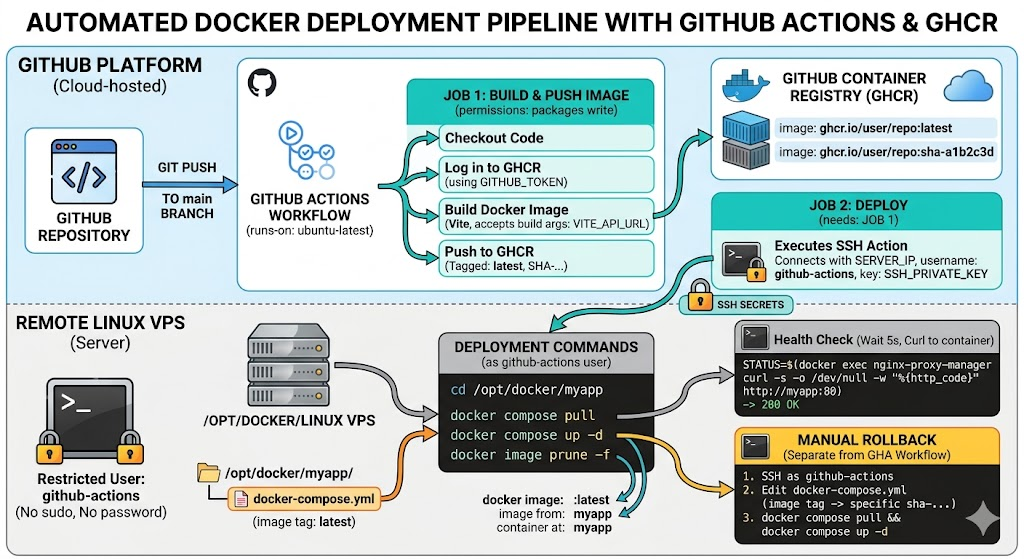
Automating your deployments using GitHub Actions and the GitHub Container Registry (GHCR) is one of the most effective ways to stabilize your infrastructure. By building your Docker images on GitHub’s runners and pushing them to GHCR, you completely offload the CPU-intensive build process from your VPS. It also leaves you with cleanly versioned images, making rollbacks trivial.
Here is how to set up a secure, automated pipeline for your containerized applications.
1. Enforce least privilege with a dedicated deploy user
Never give GitHub Actions SSH access to your primary user or root. Instead, create a severely restricted github-actions user on your server that is only allowed to pull images and restart containers.
SSH into your server and run the following to create the user, add them to the Docker group, and restrict their scope:
# Add service account without password or shell
sudo adduser --disabled-password --gecos "GitHub Actions deploy" github-actions

# Add service account to the docker group
sudo usermod -aG docker github-actions

# Give ownership of the required app directory to the service account
sudo chown -R github-actions:github-actions /opt/docker/myapp
This user cannot escalate privileges via sudo or modify system configurations. If you host multiple apps, assign ownership on a strict per-directory basis.
2. Configure SSH Authentication
Generate a dedicated ED25519 key pair locally specifically for this pipeline:
ssh-keygen -t ed25519 -C "github-actions-deploy" -f ~/.ssh/github_actions_deploy -N ""
Copy the public key to your server. Because the github-actions user has no password, you must set this up using your existing admin user:
sudo mkdir -p /home/github-actions/.ssh
sudo cp ~/.ssh/github_actions_deploy.pub /home/github-actions/.ssh/authorized_keys
sudo chown -R github-actions:github-actions /home/github-actions/.ssh
sudo chmod 700 /home/github-actions/.ssh
sudo chmod 600 /home/github-actions/.ssh/authorized_keys
In your GitHub repository, navigate to Settings > Secrets and variables > Actions and add two secrets:
SERVER_IP: Your VPS IP address.SSH_PRIVATE_KEY: The complete contents of your private key file (~/.ssh/github_actions_deploy).
3. Prepare the Server Environment
Next, update your server’s docker-compose.yml (located at /opt/docker/myapp/) to point to the GHCR registry instead of a local build context.
services:
  app:
    image: ghcr.io/your_github_user/your_repo:latest
    container_name: myapp
    restart: unless-stopped
    networks:
      - proxy

networks:
  proxy:
    external: true
Note: GHCR paths are always strictly lowercase.
To allow your server to pull private packages, generate a GitHub Personal Access Token (PAT) with the read:packages scope. Authenticate Docker on the server as the github-actions user:
sudo -u github-actions docker login ghcr.io -u YOUR_GITHUB_USER --password-stdin <<< "YOUR_GITHUB_PAT"
4. The GitHub Actions Workflow
Create the pipeline file at .github/workflows/deploy.yml.
If you strictly follow test-driven development principles, this is exactly where you would insert a testing job to run your suite and fail the pipeline before a build is ever triggered.
Here is the core deployment configuration:
name: Build and Deploy
on:
  push:
    branches: [main]

env:
  REGISTRY: ghcr.io
  IMAGE_NAME: ${{ github.repository }}

jobs:
  build-and-push:
    runs-on: ubuntu-latest
    permissions:
      contents: read
      packages: write
    steps:
      - uses: actions/checkout@v4

      - uses: docker/login-action@v3
        with:
          registry: ${{ env.REGISTRY }}
          username: ${{ github.actor }}
          password: ${{ secrets.GITHUB_TOKEN }}

      - uses: docker/metadata-action@v5
        id: meta
        with:
          images: ${{ env.REGISTRY }}/${{ env.IMAGE_NAME }}
          tags: |
            type=raw,value=latest
            type=sha

      - uses: docker/build-push-action@v6
        with:
          context: .
          push: true
          tags: ${{ steps.meta.outputs.tags }}
          labels: ${{ steps.meta.outputs.labels }}
          # build-args: |
          #   VITE_API_URL=${{ secrets.VITE_API_URL }}

  deploy:
    needs: build-and-push
    runs-on: ubuntu-latest
    steps:
      - name: Deploy to server
        uses: appleboy/ssh-action@v1
        with:
          host: ${{ secrets.SERVER_IP }}
          username: github-actions
          key: ${{ secrets.SSH_PRIVATE_KEY }}
          script: |
            cd /opt/docker/myapp
            docker compose pull
            docker compose up -d
            docker image prune -f

      - name: Health check
        uses: appleboy/ssh-action@v1
        with:
          host: ${{ secrets.SERVER_IP }}
          username: github-actions
          key: ${{ secrets.SSH_PRIVATE_KEY }}
          script: |
            sleep 5
            STATUS=$(docker exec nginx-proxy-manager curl -s -o /dev/null -w "%{http_code}" http://myapp:80)
            if [ "$STATUS" != "200" ]; then
              echo "Health check failed with status $STATUS"
              exit 1
            fi
            echo "Health check passed"
5. Rollbacks and Visibility
Because the docker/metadata-action step tags every build with its commit SHA, rolling back a failed deployment is straightforward.
If the health check fails:
- SSH into the server as
github-actions. - Edit
/opt/docker/myapp/docker-compose.yml. - Change the image tag from
:latestto the last known-good SHA (e.g.,:sha-a1b2c3d). - Run
docker compose pull && docker compose up -d.
Finally, remember that GHCR package visibility mirrors your repository. If your repo is private but you want the image to be public (to avoid needing a PAT on the server), you can change this in GitHub > Your profile > Packages > Package settings.